Use day, week, month, and split views and filters
Choose the calendar view, date, resources, and filters that make a scheduling question easiest to answer.
Calendar is available according to role; split view and school-wide filters are limited to internal scheduling access.
Use the calendar controls to focus on the right date, teacher, room, or location without changing the underlying schedule.
Available to
Internal scheduling users can use Calendar and its filters. Teachers see a schedule limited to their permitted staff context. Client-facing users receive a read-only agenda instead of the school-wide planning grid.
Before you start
- Confirm the active school and its timezone.
- Filters only change what you see; they do not move or remove appointments.
- A teacher or room may be hidden by an active filter even though it still has bookings.
Steps
- Select Calendar.
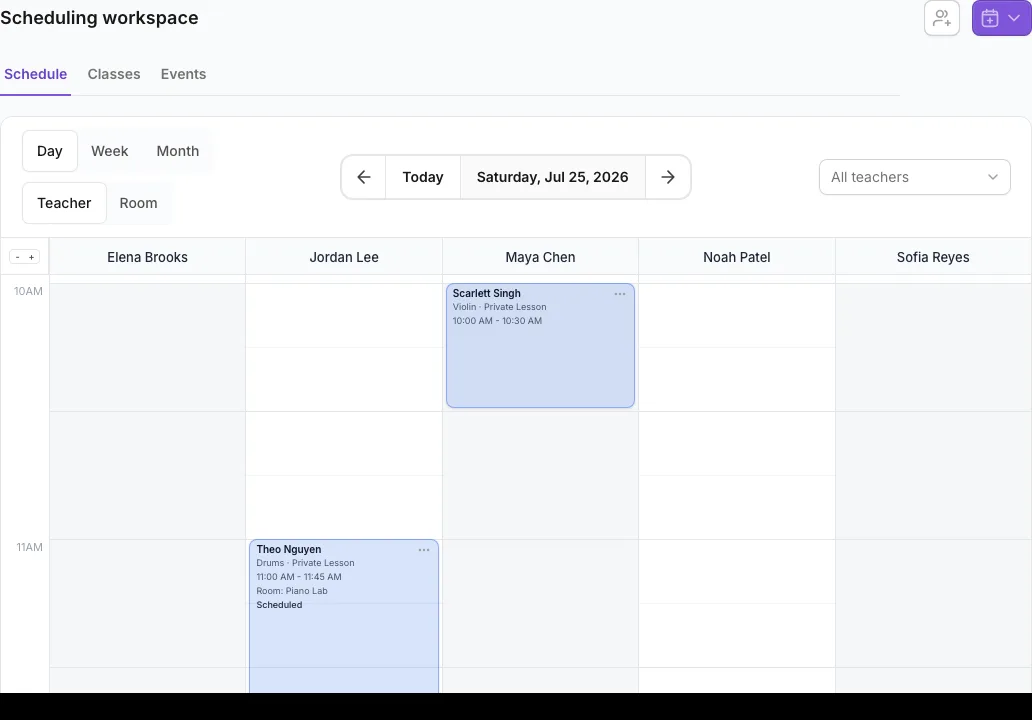
- Choose Day, Week, or Month. Use Day for detailed teacher or room planning, Week for the week at a glance, and Month for broader patterns.
- In Day, choose Teacher or Room when both resource views are available.
- Select Today to return to the current date. Use Previous period and Next period, or select the displayed date to choose a date directly.
- Use All locations to show one or more locations.
- Use All teachers to show one or more teachers. In Day, turn on Available teachers only when you want to narrow the list to teachers with availability in view.
- Turn on Show active resources only to hide empty teacher or room columns for the selected date.
- Select Open a second calendar in split view to compare two calendar panes. Each pane is marked Pane 1 or Pane 2 and can use its own date, view, and filters.
- Select Close split view and show a single calendar when you are done comparing.
What happens next
The calendar refreshes to show only the selected date range and resources. Opening an appointment, blockout, class session, or event keeps the filtered calendar underneath the detail panel.
If you do not see this option
- Teacher and Room appear only in Day and only when room view is available.
- A location filter is hidden when the school has only one location.
- Teacher filters may be locked or limited for teacher-role access.
- Split view is hidden for read-only agendas and other limited calendar contexts.
- Clear resource filters if an expected appointment is missing.
Use Groups in the sidebar to manage class and band programs, and use Events to manage events. Their scheduled sessions still appear on Calendar.
Last reviewed August 4, 2026
Related articles
Was this article helpful?
Your feedback helps us improve the Help Center.