Understand a client profile and family relationships
Read a client's identity, roles, linked people, lessons, access, billing responsibility, and next actions from one profile.
Requires client-profile access; individual tabs depend on billing, assignments, pipelines, notes, and access permissions.
Use the client profile as the reliable place to understand one person's identity and every school relationship connected to it.
Available to
Internal users with client-profile access can open profiles. Tabs and actions are personalized by permission and by the person's roles and data.
Before you start
- Confirm you opened the right person, especially when family members share a name, email, or phone.
- A person can be a student, account manager, billing contact, or several of these at once.
- Do not infer billing responsibility from a surname; use the linked account and billing information.
Steps
- Select Clients, find the person, and open their row.
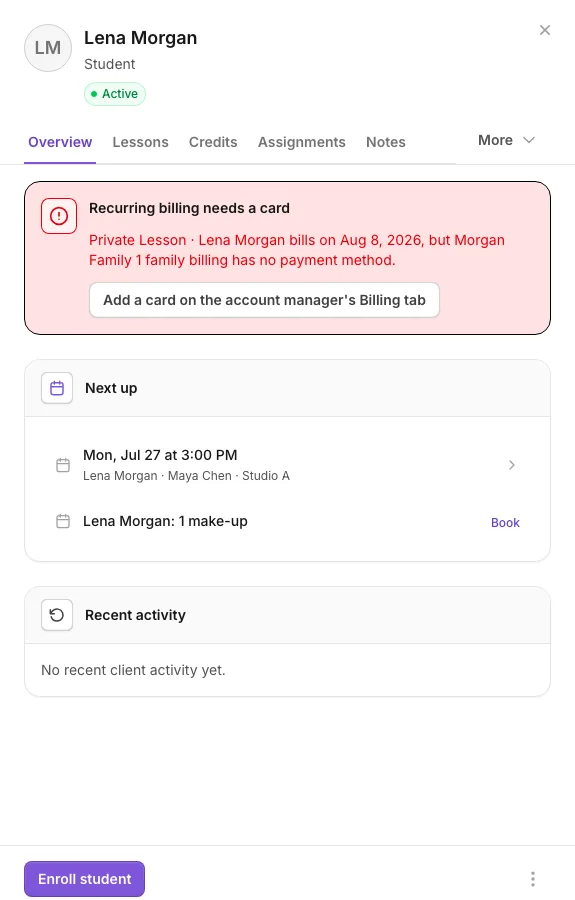
- Read the profile header: name, role summary, lifecycle status, and any Enrolled · Pending Payment warning.
- On Overview, review the next best action, identity and contact facts, linked relationships, billing attention, upcoming lessons, and pinned notes.
- Select Account to inspect account managers, dependents, payers, and other linked people. Select a linked person to open their profile while keeping a back path to the current client.
- Use Lessons for enrollment readiness, plans, upcoming and past appointments, and lesson actions.
- Use Assignments for current and completed learning work, and Credits for make-up or service-credit balances and eligibility.
- Use Billing to see who handles billing, billing accounts, cards, subscriptions, invoices, payments, and overdue attention. Follow View [name]'s billing when another account manager is responsible.
- Use Pipelines to see active or closed admissions opportunities and their stage. Use Notes for the conversation and note history.
- Open More actions for Copy link, Edit, Add dependent, Archive, or Reactivate when those actions are allowed.
- Use the side-panel back button after following a related person, lesson, invoice, assignment, or lead.
What happens next
Changes made in a connected tab appear wherever that same person or relationship is used: the directory, calendar, billing, portal access, assignments, and pipelines all point back to the shared record.
If you do not see this option
- A tab is hidden when it does not apply to the person or your role cannot use it.
- Billing requires billing visibility and may be handled on a linked account manager's profile.
- Assignments and Pipelines depend on their feature and permission access.
- Account may be absent when the record has no supported account relationship.
- Archived profiles are read-only until Reactivate is used by an authorized person.
- If relationships look wrong, do not create replacement records; correct or unlink the relationship carefully.
Last reviewed July 25, 2026
Related articles
Was this article helpful?
Your feedback helps us improve the Help Center.