Edit pages, compare desktop and mobile, and add images
Review each generated page, request focused changes, check both screen sizes, and add only approved public images.
Available after the first website preview has been created.
Use the Editor to review one page at a time and request small, verifiable changes while watching the preview update.
Available to
Owners and admins with Website management access can edit a generated preview in a real school workspace.
Before you start
Open Website → Editor. Decide on one clear outcome for the next update, such as shortening the Home introduction or making the Programs page easier to scan. Focused requests are easier to review than a long list of unrelated changes.
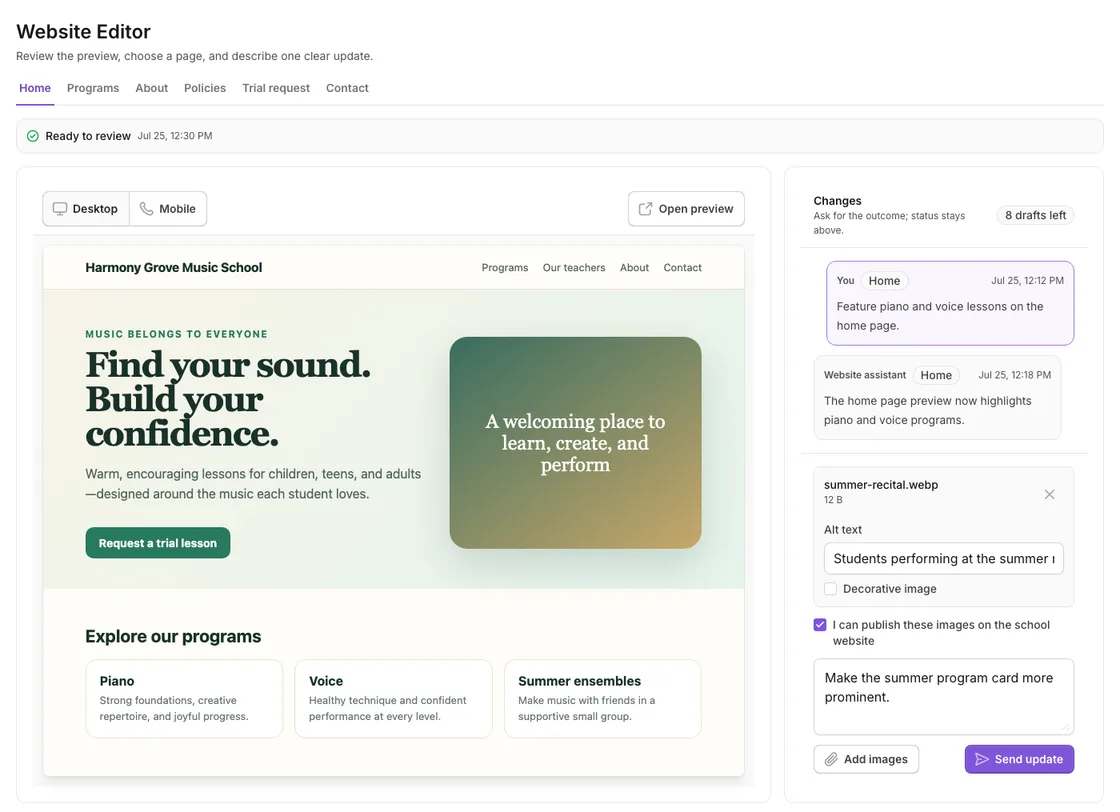
Steps
- Choose a page: Home, Programs, About, Policies, Trial request, Contact, or Client login.
- Read the page in the preview before requesting a change.
- Select Desktop, then select Mobile. Check headings, buttons, images, forms, and whether any content feels crowded or cut off.
- In Changes, enter one clear request in Describe one clear change....
- To include images, select Add images and choose supported files up to 10 MB.
- Add alt text for a meaningful image, or mark it Decorative image when it conveys no information.
- Select I can publish these images on the school website only when the school has the right to make them public.
- Select Send update. If another update is already running, the button says Queue update.
- Review the new result in both Desktop and Mobile. Read the change history to see what was requested and completed.
- If a queued update needs correction, edit it and select Save queued update before it starts.
What happens next
Each completed update creates a new preview version and remains in the change history. The latest successful preview becomes the version you inspect in Versions; it still does not change the public website.
If you do not see this option
Create the first preview first. The monthly draft limit may also be reached, or an update may already be running. You can revise the queued next update or wait for the current operation or limit to reset.
Last reviewed July 25, 2026
Related articles
Was this article helpful?
Your feedback helps us improve the Help Center.